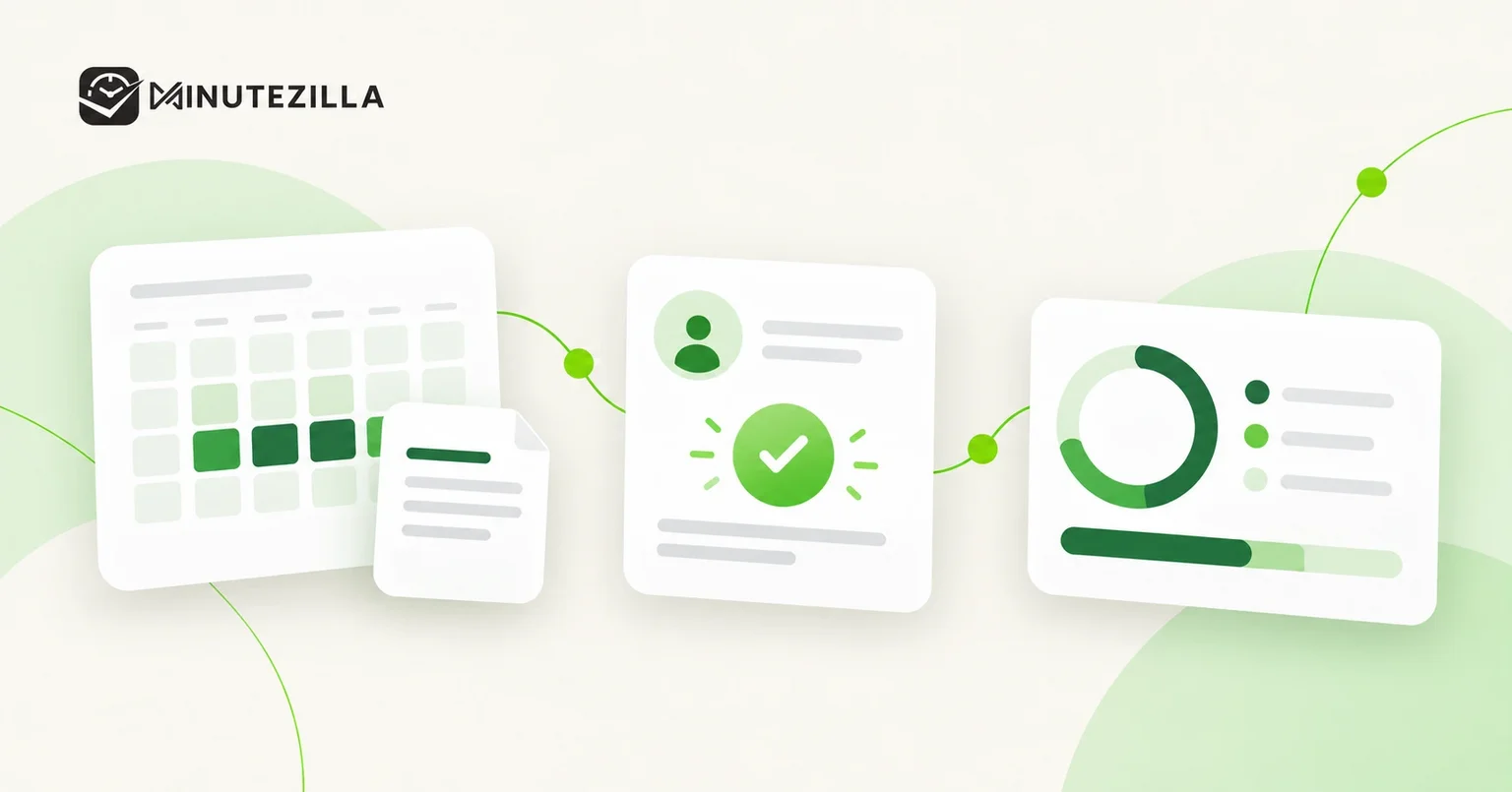
From a leave request to a recorded decision
“Can I take next week off?” leaves several questions unanswered: which dates, who decides and whether the request has been approved. In Minutezilla, an employee submits a request with a leave type and date range. The responsible person reviews it through the configured workflow. The decision and the relevant balances can then be checked in the app.
Project time, attendance and leave belong to the same working week, but they remain separate records. Project entries describe work performed. Attendance records the working day. Leave requests describe a planned absence.
Before the first request: settings and responsibilities
HR features must be enabled for the workspace. An admin configures leave types and annual allowances. Whether a type needs approval or deducts from an allowance depends on its settings.
Agree who reviews requests and how the team handles cover and outstanding client work. Entering an allowance does not establish someone's legal entitlement. If you want requests to go through approval, configure the leave type accordingly.
Example: Lea requests two days off
This is an illustrative walkthrough, not a customer case study. Lea wants to take Thursday and Friday off. She checks the balance displayed in the app, chooses the configured holiday type and enters the date range. Before submitting, she checks the details and avoids unnecessary personal information in the note.
For a type that requires approval, the request initially remains pending. Submitting it is not the same as receiving approval. Lea can follow its status in her own request list.
The responsible person reviews the request
An authorised admin or manager considers the request alongside the team's arrangements. When a step is assigned to a particular approver, that assignment determines who can act. Employees cannot approve their own requests.
In a multi-step workflow, another decision may still be needed after the first approval. Check the overall request status. Decisions are communicated in the app; this walkthrough does not promise email notifications. Lea then checks the status and balance shown in her own view.
Keep leave separate from worked hours
Leave should not be entered as worked client or project time. On working days, employees record tasks using a project timer or manual entry, and record attendance through check-in, breaks and check-out.
Before reporting, review pending requests and incomplete attendance separately. A missing time entry should not be treated as an assumed day off. Our small-team workflow explains how project time and attendance fit together.
Use the right report for the question
HR reports provide separate views. Attendance and overtime use a date range. The leave report shows annual allowances and days used by leave type. Each report has its own CSV download.
Before handing over a file, check its reporting period, outstanding requests and the fields the recipient needs. An export does not run payroll or replace your organisation's rules for access, corrections and retention. See HR reports and security and data protection for more information.
Try the workflow with two people
Configure a suitable leave type and allowance. Have one person submit a sample request and a different authorised person review it. Then check the overall status, in-app notification and displayed balances.
Start using Minutezilla for free. All features are available without a credit card during the launch period until June 1, 2027. Later plans are provisional; see current pricing terms.