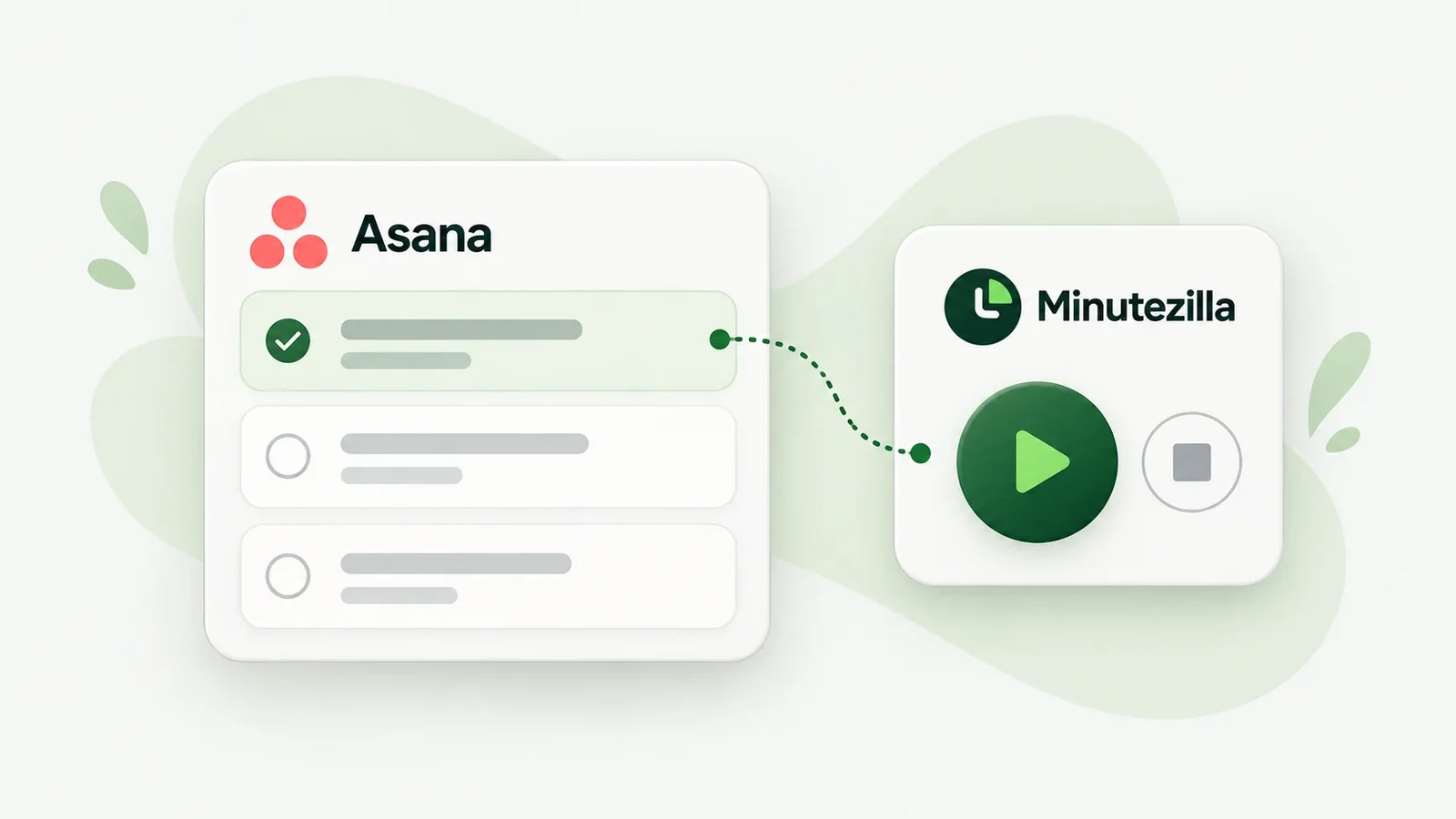
Asana records what needs to be done. Minutezilla adds the time you record against that work. The integration connects Asana tasks to Minutezilla projects. You can start a timer in Minutezilla or use the browser extension to control it directly on an open Asana task.
The integration is undergoing a limited rollout for approved Asana workspaces. This does not imply availability to every organization or publication in the Asana App Directory. This guide describes the currently supported workflow and its limits.
What you need before setup
You need a Minutezilla account, membership in the intended Minutezilla workspace, and an Asana account with access to the relevant projects. Importing projects and using “Sync Now” require the Admin role in Minutezilla. Each member connects their own Asana account; an administrator’s connection does not replace personal authorization.
The labels in this guide match the current English app interface. The browser extension is required for the additional controls inside the Asana website. Without it, you can still use the timer in Minutezilla. To export back into Asana’s native time tracking, that feature must be included in the Asana workspace’s plan or an appropriate add-on.
Connect Asana to Minutezilla
Open Integrations in Minutezilla and check your active Minutezilla workspace. Choose “Connect Asana” and follow the authorization flow in Asana. Read the requested permissions before approving. The current connector uses Asana’s “Full permissions”; the content it can access still follows your Asana account’s permissions.
When you return to Minutezilla, the integration page shows the connection status. Select the Asana workspace and project. The connection belongs to your Minutezilla account within the relevant workspace.
Sync projects, tasks and users
As an administrator, choose “Sync Now” to read the selected Asana workspace’s active projects that your account can access, along with their tasks. The sync also imports a user directory. Plan this step deliberately: it covers all accessible active projects in that Asana workspace, rather than only the project currently selected.
Existing project mappings are reused. Repeating sync does not create additional Minutezilla projects for those mappings. Existing local project names, settings and memberships are preserved. If you only need one project to begin with, use “Import selected project”.
Users are matched by email address to existing active Minutezilla workspace members. An address without a match remains unlinked. Sync does not create login accounts, send invitations, assign roles or grant project access. Use the regular team and project settings for those actions.
Try Minutezilla for free
Time tracking, attendance, breaks and leave in one tool. Right in the browser, no credit card.
Start and stop a timer inside Asana
Install the Minutezilla Chrome or Firefox extension provided for your rollout, then reload the Asana page. The extension is not currently described as a generally available store installation; use the supplied package and its installation instructions.
Open a task in an imported project. The Minutezilla panel appears in the lower-right corner. “Start timer” starts the linked timer and “Stop timer” ends it. A status message confirms the result. Starting the same task again while its timer is running does not create a second timer. Starting a different task stops your previous running timer.
You must be signed in to Minutezilla in that browser and have access to the linked project. The extension processes the request through a temporary Minutezilla tab in the background. After successful processing, that tab closes while your Asana task stays open. If sign-in or setup is required, open the Minutezilla tab and complete it there.
Alternatively, select a task on the integration page and start its timer there. The entry remains linked to the task on the Minutezilla dashboard.
Review tracked time and send it to Asana
Stop your timer, then open “Linked time entries” on the integration page. Use “Refresh time entries” to update the list. Minutezilla groups stopped, linked timers for the same task and UTC day. It rounds the combined duration once to whole minutes. Running timers are excluded, and export requires at least one rounded minute.
Review the task, date and duration before choosing “Send to Asana”. Export happens only when you request it. Later edits or deletions are not automatically synchronized between the two systems. A UTC day can differ from your local calendar day, particularly around midnight.
If the Asana workspace does not have native time tracking, Asana can reject export with error 402. Your entry remains saved in Minutezilla. Ask your Asana administrator to check access to time tracking. You do not need to upgrade Asana simply to keep recording time in Minutezilla. The export requirement is also described in Asana’s time-entry documentation.
If a transfer is unconfirmed, check the Asana task before sending again. Minutezilla blocks uncertain repeats to avoid duplicate time logs and lets you review existing Asana entries.
FAQ
Do I need an Asana App Directory listing?
No. The configured connection and, where needed, the browser extension are sufficient within approved workspaces. Publication in the App Directory is a separate process.
Does sync automatically invite new team members?
No. The user sync matches existing active workspace members by email address. Manage invitations, roles and project access separately.
Does this panel work in the Asana desktop app?
The panel described here belongs to the browser extension for the Asana website. It does not provide a native integration inside the Asana desktop app.
What should I check if a timer will not start?
Check your sign-in, active Minutezilla workspace, personal Asana connection and project access. The project must be imported. Reload Asana after an extension update and read the status message in the panel.
Begin with a test project
Set up the connection for an approved test project first. Start and stop a task, check the saved entry, and confirm Asana’s plan requirements before exporting. This lets you verify the workflow before more team members begin using it.